Quick answer: To open the 10.0.0.1 Piso WiFi portal, connect to the vendo’s Wi-Fi, turn off mobile data and wait for the sign-in pop-up. If nothing appears, type http://10.0.0.1 in your browser’s address bar. Tap Insert Coin (or Insert Money), drop your coins, then tap Done Paying. Your time left and status show on the same screen.
10.0.0.1 Piso WiFi is the local page that a coin-operated Wi-Fi vendo shows its customers before it lets them online. It is where you pay, see how many minutes you have left, and pause or extend your session. This guide walks you through the whole Piso WiFi login, button by button, on Android and iPhone, plus quick fixes when the page won’t load.
This page is for customers. If you own the machine and need the settings side, see the 10.0.0.1 admin login guide instead. If you only typed the address wrong, our 1.0.0.0.1 login guide explains the common typos.
What Is the 10.0.0.1 Piso WiFi Portal?
Piso WiFi is the Filipino coin-operated hotspot that grew out of Pisonet computer rentals. You drop a peso or more into a slot on the vendo box, and the machine gives your phone a set amount of internet time. To know which phone paid, it first shows a sign-in page at 10.0.0.1.
This kind of page is called a captive portal. Your phone joins the Wi-Fi, but the vendo holds back the internet until you pay. Because 10.0.0.1 is a private address inside the vendo’s own network, it only opens while you are on that machine’s Wi-Fi, never on mobile data or your home Wi-Fi.
There are two sides to the same address. Plain 10.0.0.1 is the customer page. Adding /admin opens the owner’s control panel, which needs a username and password and is not meant for customers. Typing extra numbers, like the common 10.0.0.0.1 piso wifi search, gets you nowhere, because a real address has only four numbers.
What You Need Before Your Piso WiFi Login
- A phone, tablet or laptop with Wi-Fi turned on.
- Coins, a voucher code, or an e-wallet if the owner offers one.
- A spot near the vendo, where the signal is strongest.
- Mobile data and any VPN switched off while you sign in.
- A normal browser such as Chrome or Safari.
How to Log In to the 10.0.0.1 Piso WiFi Portal
The Piso WiFi login steps are almost the same on every phone. The main difference is how Android and iPhone show the sign-in screen. Follow the list for your phone, and keep the same device for your whole session.
Piso WiFi Login on Android
- Open Settings, then Wi-Fi, and make sure Wi-Fi is on.
- Tap the vendo’s network name. It is usually printed on the machine, and most vendo networks have no Wi-Fi password.
- Wait a few seconds for a notification such as “Sign in to Wi-Fi network” and tap it.
- If no notification shows, open Chrome and type
http://10.0.0.1in the address bar, then tap Go. - If your phone warns that the network has no internet, choose to stay connected.
- When the Piso WiFi portal loads, check the rates, then tap Insert Coin or Insert Money.
Piso WiFi Login on iPhone
- Open Settings, tap Wi-Fi, and pick the vendo’s network name.
- A sign-in sheet usually slides up after a few seconds. That sheet is the Piso WiFi portal.
- If it does not appear, open Safari, type
http://10.0.0.1in the address bar and tap Go. - If your iPhone asks whether to keep using the network without internet, choose to stay on it. The wording depends on your iOS version.
- Tap Insert Coin or Insert Money, pay, and wait for the timer to start.
- Keep using the same iPhone, since the vendo remembers your device, not your name.
Pop-Up Window vs Typing 10.0.0.1 Yourself
The automatic pop-up is a small built-in browser. It works for paying, but it can close when you switch apps, and some buttons may not work inside it. If it disappears, your paid time normally keeps running. Open your full browser and type the address to get back.
Two habits save a lot of trouble. First, type into the address bar, not the Google search box, or you will get search results instead of the Piso WiFi portal. Second, use http:// rather than https://. Most vendo pages are plain http, so a forced https link can hang or show a warning.
How to Pay: Coins, Vouchers and E-Wallets
Every vendo accepts coins. Many also take voucher codes, and some take GCash or Maya. What you see on the Piso WiFi portal depends on the vendo software and on which features the owner turned on.
Insert Coin, Then Done Paying
- Tap Insert Coin or Insert Money on the portal. Many systems start a short countdown while the slot is open for you.
- Drop one coin at a time. Wait for the amount on screen to go up before you add the next one.
- When the total looks right, tap Done Paying. Some systems call this button Confirm or Connect.
- Check that your time left and status update. The status should change to something like Connected.
Tip: On most systems the coin slot serves one phone at a time. If it says the slot is busy, wait your turn. Coins dropped before you tap Insert Coin may not be credited to you.
Using a Voucher Code
Some owners sell vouchers, often at a nearby store or counter. Look for a Voucher box on the Piso WiFi portal, type the code exactly as printed, and tap the button beside it. Codes are usually good for one use only, so don’t post a photo of yours online before you redeem it.
Paying With GCash or Maya
E-wallet buttons only appear where the owner has enabled them. When they do, the portal shows the next steps, often a QR code or a link that finishes the payment in your app. Always check the amount before you confirm.
Choosing the Right Vendo or Zone
Bigger setups put several coin boxes, called sub-vendos, on one network. The Piso WiFi portal may ask you to pick the machine or zone you are standing at, while some systems detect it for you. Choose the box you will put coins into, or your coins may not reach your session.
Member or Account Login on Some Systems
A few portals show a Login or Member option for regular customers. It is an extra some owners set up, and it works differently from system to system. It is not the owner’s admin page, and a normal Piso WiFi login with coins works without it.
Piso WiFi Portal Tour: Every Button Explained
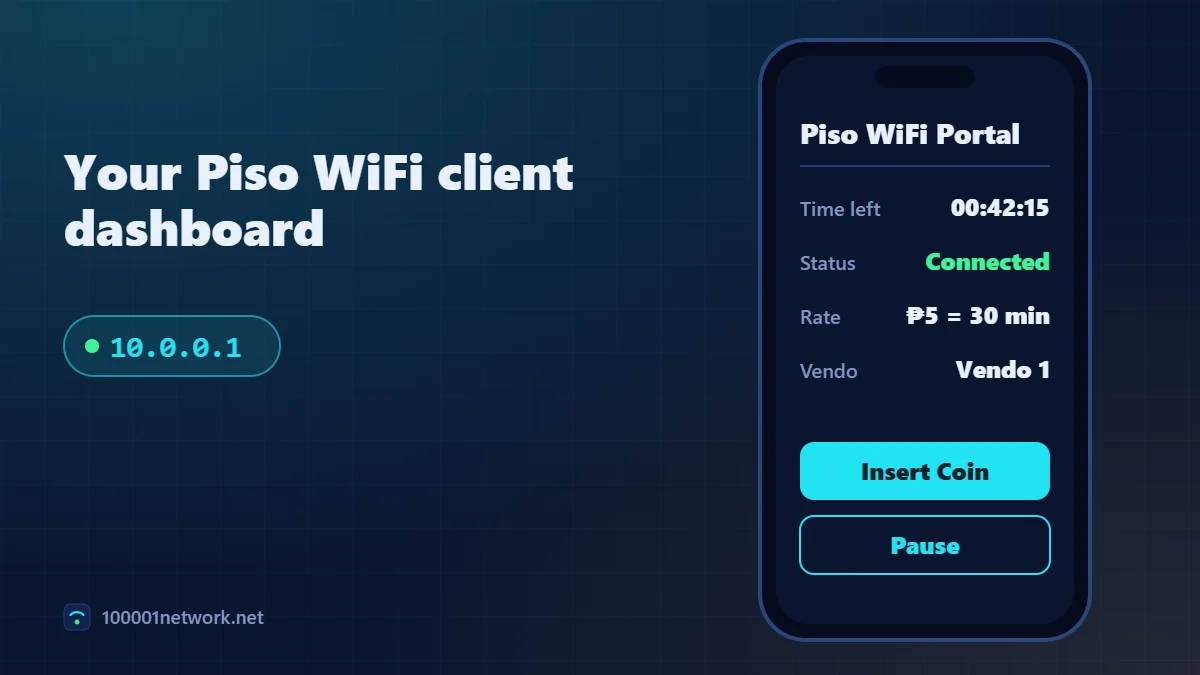
Once you are in, the 10.0.0.1 Piso WiFi portal can look busy, but it only has a handful of parts. Here is what each one means. Your screen may use different words or colours, since owners pick themes.
| Portal element | What it means | Tip |
|---|---|---|
| Time left | Minutes and seconds you still have | Keeps counting unless you pause |
| Status | Connected, Paused or Disconnected | Paused means no internet until you resume |
| Device info (MAC or IP) | How the vendo recognises your phone | Read it to the owner if there is a problem |
| Insert Coin / Insert Money | Opens the coin slot for your phone | Drop coins only after you tap it |
| Done Paying | Ends payment and adds your time | Tap only after the last coin shows |
| Rates | Price list set by the owner | Bigger amounts often give better value |
| Voucher | Box for a prepaid code | Type it exactly, with no spaces |
| Pause / Resume | Freezes or restarts your time | Only works if the owner allows it |
| Extend / Add time | Buys more time on top of what is left | Do it before your time runs out |
| GCash / Maya | E-wallet payment, if enabled | Check the amount first |
| Vendo or zone list | Picks which coin box you are using | Match the box you are standing at |
Reading Your Time Left on the Piso WiFi Portal
On most systems the clock keeps running while your session is active, even if your screen is off. Only Pause stops it. Paused means your minutes are frozen and you have no internet until you tap Resume. Disconnected or Expired usually means your time ran out, so you need to pay again.
To check your balance later, reopen http://10.0.0.1 on the same phone while on the vendo Wi-Fi. Viewing the dashboard is free. If it shows zero right after you paid, see the troubleshooting table below.
The Rates List
The rates list on the Piso WiFi portal shows how much time each amount buys. The vendo owner sets these numbers, so they change from place to place. The table below is only an example of a common pattern, not a price to expect everywhere.
| Amount | Example time (set by the owner) | Good for |
|---|---|---|
| ₱1 | 5 minutes | A quick check of messages |
| ₱5 | 30 minutes | More value than five single coins |
| ₱10 | 1 hour | Longer browsing or a video call |
Some systems sell data instead of time. If the list shows MB or GB, you are buying a data allowance, not minutes.
Extending Your Time
To add more time, open the portal again and tap Insert Coin, Insert Money or Extend while your session is still active. On most systems the new minutes stack on top of what you have left. If your time already ran out, paying starts a new session.
Pausing Your Time
The Pause button freezes your remaining time so you can come back later. Tap Resume on the same phone to continue. Owners can turn pause off, limit how often or how long you use it, and set paused time to expire. Our Piso WiFi pause time guide covers those rules and fixes in detail.
The vendo usually knows you by your phone’s MAC address. Many phones now use a random Wi-Fi address for privacy, and if it changes, the portal may treat you as a new customer and show zero time. On iPhone, look for Private Wi-Fi Address in that network’s settings. On Android, look for a MAC address or privacy option in the network details.
How Piso WiFi Portal Labels Differ on LPB, AdoPiSoft and Wifi5 Soft
Most vendos run on one of a few software systems that do the same job with different button names. Labels vary by version and theme, and owners can rename some, so treat this table as a rough guide, not an exact copy of your screen.
| Action | LPB | AdoPiSoft | Wifi5 Soft |
|---|---|---|---|
| Start paying | Insert Money | Buy WiFi or Insert Coin | Insert Coin |
| Finish paying | Done Paying | Confirm | Connect |
| Stop the clock | Pause | Pause | Pause |
| Add more time | Insert Money again | Buy WiFi again | Extend |
| Prepaid code | Voucher | Voucher | Voucher |
| E-wallet | GCash or Maya, if enabled | Varies by version | Varies by version |
Extra buttons, such as e-load or data plans, are add-ons the owner chose. For more on each system, see our LPB Piso WiFi guide or the Wifi5 Soft guide.
Piso WiFi Portal Didn’t Pop Up? Try These Fixes
This is the most common Piso WiFi login problem, and it is usually a phone setting. Test again after each step.
- Check that you are on the vendo’s Wi-Fi, not a neighbour’s network or your home Wi-Fi.
- Turn off mobile data, so your phone doesn’t skip the Wi-Fi.
- Open any website that starts with http:// instead of https://, such as neverssl.com. The vendo usually redirects plain http pages to the portal.
- Type
http://10.0.0.1straight into the address bar, not the search box. - Turn off any VPN or ad-blocking app until you have signed in.
- On Android, set Private DNS to Off or Automatic for now. Look under Network and internet or Connections.
- Forget the network, then join it again. Turning airplane mode on and off also helps.
- Still nothing? The vendo may be offline or restarting. Wait a few minutes or ask the owner.
Coins Not Credited? What to Do
Dropped a coin and got no time? Follow these steps before you put in any more money.
- Stop inserting coins. More coins will not fix a stuck slot, and you could lose those too.
- Wait about a minute, then refresh
http://10.0.0.1. Credit sometimes shows up a little late. - Check whether you forgot to tap Done Paying, or whether the countdown ended before your coin dropped.
- If the slot keeps returning a coin, try a cleaner coin of the same value. Old or bent coins often fail.
- Note the time, the amount and the device info shown on your Piso WiFi portal.
- Call or message the owner, whose number is often posted on the machine. Many systems let owners check sales records and add missing time.
For owners: a slot that keeps eating coins usually needs cleaning or adjusting. Our Piso WiFi vendo business guide covers upkeep and keeping customers happy.
Staying Safe on Public Piso WiFi
Piso WiFi is a shared, open network. Anyone near the vendo can join it, and most have no Wi-Fi password. The Piso WiFi portal page itself is harmless, but a few habits keep your accounts safe while you browse.
Safety first on shared Wi-Fi:
- Check that the network name matches the one printed on the vendo. Look-alike networks can be traps.
- Look for https:// before you log in to banks, e-wallets or social media.
- Never share your MPIN, password or one-time PIN, even with someone who says they own the vendo.
- A normal portal never asks for your bank or social media password. If one does, close it.
- Do money transfers on mobile data when you can, and turn off file sharing.
10.0.0.1 Piso WiFi Troubleshooting Table
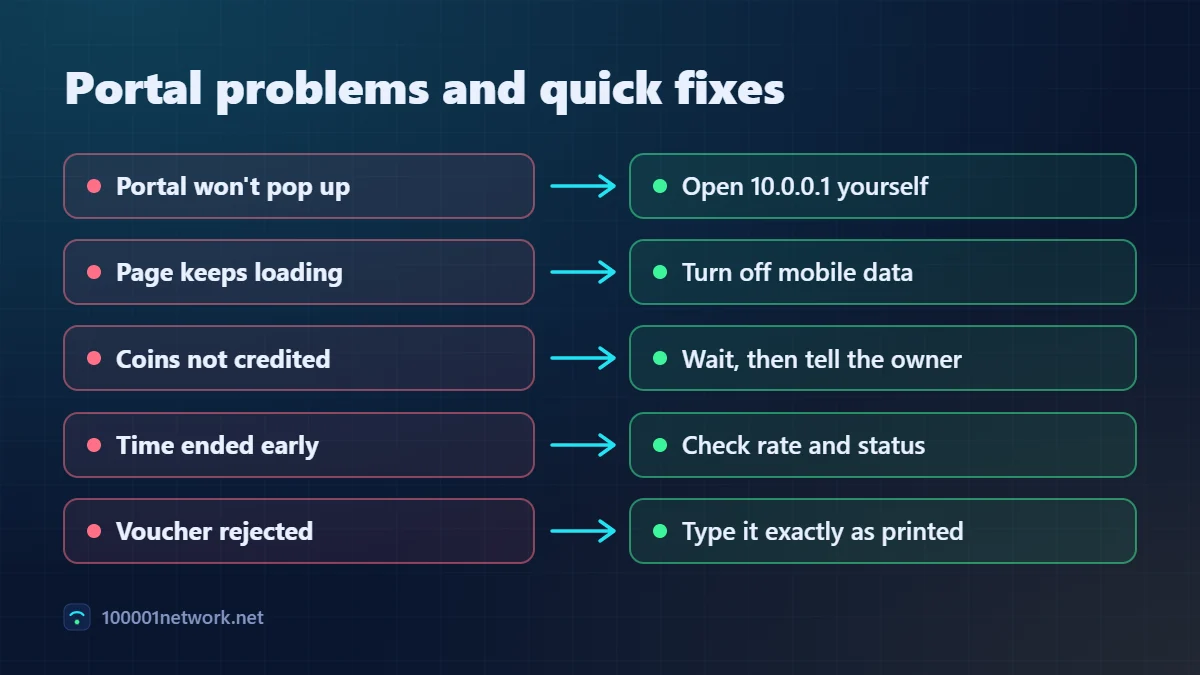
Use this table when something on the Piso WiFi portal looks wrong. Most fixes take under a minute.
| Symptom | Likely cause | Fix |
|---|---|---|
| Portal never pops up | Mobile data, VPN or Private DNS on | Turn them off, open an http site |
| “Site can’t be reached” | Wrong network or vendo offline | Rejoin the vendo Wi-Fi, wait, ask the owner |
| Google results appear | Typed in the search box or a typo | Type http://10.0.0.1 in the address bar |
| Coin dropped, no time | Slot jam, countdown ended, wrong zone | Stop, refresh, then call the owner |
| Zero time after reconnecting | Random MAC or a different phone | Use the same phone, turn off private address |
| No Pause button | Owner turned pause off | Ask the owner or use up your time |
| Paid but no internet | Status still Paused | Tap Resume, then rejoin the Wi-Fi |
| “Slot busy” message | Another customer is paying | Wait for their countdown to end |
Mabilis na gabay sa Tagalog:
- Kumonekta sa WiFi ng vendo at i-off muna ang mobile data.
- Kung walang lumabas na pop-up, i-type ang
10.0.0.1sa address bar, hindi sa Google search. - I-tap ang Insert Coin, maghulog ng barya, tapos pindutin ang Done Paying.
- Kung hindi pumasok ang hulog, huwag nang maghulog ulit. Tawagan ang may-ari.
- Gamitin ang parehong phone para hindi mawala ang oras mo.
FAQs about the 10.0.0.1 Piso WiFi Portal
How do I open the 10.0.0.1 Piso WiFi portal?
Connect to the vendo’s Wi-Fi, turn off mobile data, and wait for the sign-in pop-up. If it doesn’t appear, open Chrome or Safari and type http://10.0.0.1 in the address bar. The page only loads while you are on that vendo’s network.
What if I typed 10.0.0.0.1 piso wifi by mistake?
That address has five numbers, so your browser treats it as a search instead of a page. Delete the extra zero and type 10.0.0.1. A real address always has exactly four numbers separated by three dots.
Do I need a password for Piso WiFi login?
Usually not. Most vendo networks are open, and the portal asks for coins, a voucher or an e-wallet payment instead of a password. Some owners add a member login for regulars, but buying time with coins works without one.
How can I check my remaining time?
Reopen the Piso WiFi portal at http://10.0.0.1 on the same phone while connected to the vendo Wi-Fi. The dashboard shows your time left and status. Looking costs nothing, but the clock keeps running unless you tap Pause.
Why did my time disappear when I reconnected?
The vendo recognises you by your phone’s device address. If you switched phones, or your phone uses a random Wi-Fi address, the Piso WiFi portal may not know you. Paused time can also expire after a limit the owner sets.
Can I share my Piso WiFi time with another phone?
Normally no. Your time is tied to the device that paid, so a second phone needs its own coins or voucher. Some cloud-based systems can follow you between one owner’s machines, but splitting one balance between two phones is generally not supported.
Is it safe to use the Piso WiFi portal?
Opening the portal itself is safe, since it is a local page on the vendo. The bigger risk is the open network around it. Stick to https sites, avoid banking on public Wi-Fi when you can, and never share your MPIN or one-time PIN.
Final Word
The 10.0.0.1 Piso WiFi portal is simple once you know where each button is: connect, open the page, pay, and watch your timer. If your Piso WiFi login goes wrong, check the basics and talk to the owner before adding more coins. For other address problems, our 10.0.0.1 login help page has more fixes.