Quick answer: A Wifi5 Soft vendo uses two addresses. Customers join the vendo Wi-Fi and open 10.0.0.1 to insert coins, connect, pause or extend time. Owners open 10.0.0.1/admin and sign in with the account (email and password) made during setup. Third-party guides report there is no fixed default password, so if you lost yours, ask your seller or installer.
Wifi5 Soft is Piso WiFi vendo software used by some coin-operated Wi-Fi owners in the Philippines. This guide covers both sides of the machine: customers on the wifi5-soft client 10.0.0.1 page, and owners who manage rates, vouchers, pause time and licence status from the dashboard. Menu names can change between versions, so we flag every label that may look different on your unit.
What Is Wifi5 Soft?
Piso WiFi is the Wi-Fi cousin of the Pisonet, the coin-operated computer rental found in many Philippine towns. A vendo is a box with a coin slot, a small computer and a Wi-Fi access point. The software inside decides how much time each coin buys, who is online and when time runs out.
Wifi5 Soft is one of those software options, alongside LPB and AdoPiSoft. It shows customers a sign-in page at 10.0.0.1 and gives the owner a web dashboard at 10.0.0.1/admin. Still planning a business? Our Piso WiFi vendo business guide covers hardware, costs and setup choices.
An honest note about our sources
We could not find an official Wifi5 Soft website or public manual. The details here come from third-party setup guides and from how similar vendo systems work. We have not checked every menu on a live unit, so reported details are marked as such.
- Menu names and paths may differ between versions and builds.
- Your seller or installer knows your version, so ask them first.
- If this page does not match your screen, trust your screen.
Customer Guide: How to Use Wifi5 Soft at 10.0.0.1
Customers never need the admin page. Everything happens on the wifi5-soft client 10.0.0.1 page, which is a captive portal: a sign-in screen that appears before the internet opens.
How to buy time with coins
- Open your Wi-Fi settings and join the vendo’s network name. It is often written on the machine.
- Wait for the “Sign in to network” pop-up, or type
10.0.0.1in your browser’s address bar. - Tap Insert Coin. A short countdown usually starts.
- Drop your coins in before the countdown ends and watch the credited amount go up.
- Tap Connect to start your time. Your remaining minutes should now show on the page.
Button names come from third-party walkthroughs and may differ on your vendo. “Insert Money” or “Buy Time” do the same job. Our 10.0.0.1 Piso WiFi customer guide covers client pages in more depth.
How to pause or extend your time
On the Wifi5 Soft versions we have seen documented, the client page shows Pause and Extend buttons while you are connected. Pause freezes your remaining minutes so you can leave and come back. Extend adds more coins on top of the time you already have.
- Reopen
10.0.0.1on the same phone you used to pay. - Tap Pause to stop the countdown. Your internet will disconnect.
- Later, rejoin the same Wi-Fi, open the page again and tap the resume or connect button.
- To add time, tap Extend or Insert Coin, then drop more coins.
No Pause button? The owner may have turned it off, or you may have used up your pause limit. Ask the owner before you pay if pausing matters to you, for example during online classes.
How to Log In to the Wifi5 Soft Admin Dashboard
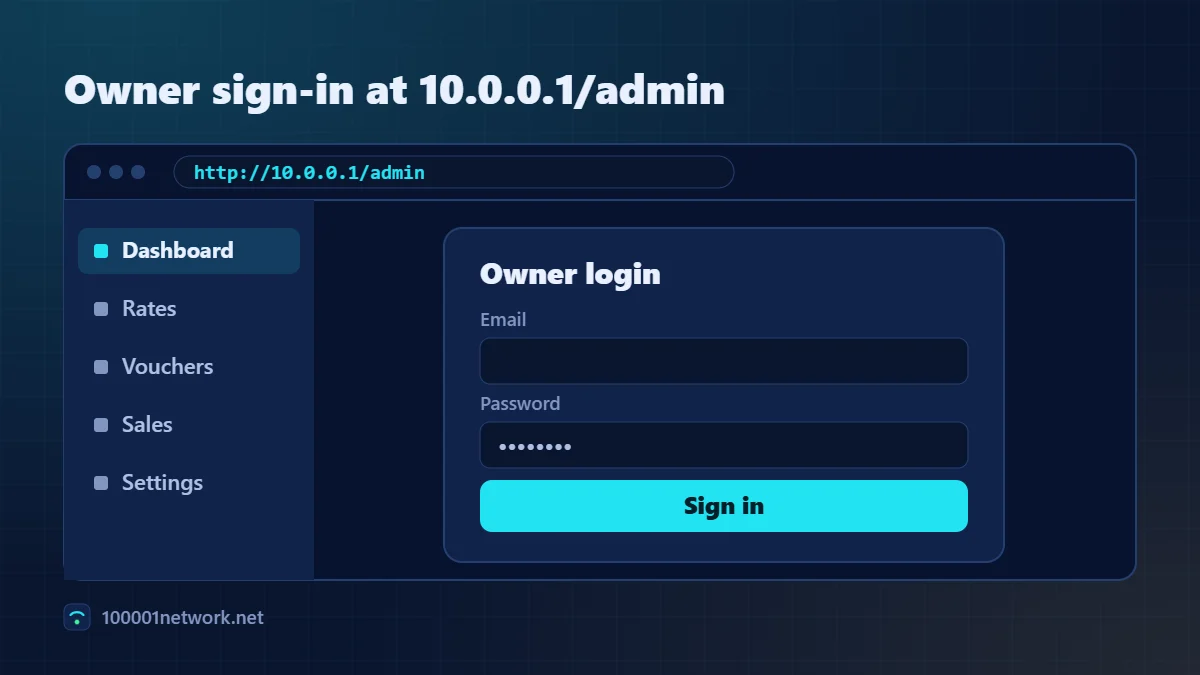
The wifi5 soft admin page lives at 10.0.0.1/admin on the vendo network. Some vendo systems ship with a fixed username and password, but Wifi5 Soft is reported to use an owner account instead. You sign in with the email and password created during setup, not a code from a manual.
- Connect to the vendo Wi-Fi, or plug a cable into the vendo’s LAN port if your setup has one.
- Turn off mobile data and VPN so the page loads from the vendo, not the internet.
- Type
10.0.0.1/adminin the address bar. Use a slash, not a space. - Enter your account email and password. Some versions may say Username instead of Email.
- Tap Sign in. The dashboard should open and show your vendo status.
If the form does not load, see the troubleshooting table below. Our 10.0.0.1 admin login guide lists default logins for other vendo brands.
First-time setup: creating the owner account
Third-party guides describe a registration step when a Wifi5 Soft vendo is first set up, including an email sign-up option. Often the installer does this for you. If so, ask them for the account email and password, then change the password right away.
Forgot your email or password?
Because the login is account-based, there is no factory password to fall back on. Try these steps in order and stop when one works.
- Look for a “forgot password” or recovery link on the sign-in page.
- One third-party guide shows a recovery option in a three-dot menu beside the vendo’s network name. Check whether your version has it.
- Search your inbox for the original sign-up messages to find the right email.
- Contact the seller or installer who set up the vendo.
- Treat a hardware reset as the very last step, and ask your seller first. Hold times differ by unit, and a reset can wipe your rates and vouchers.
Wifi5 Soft Admin Dashboard Tour
Reported screens show vendo status, licence expiry and when the vendo was last active. The labels below come from third-party sources, so yours may read a little differently.
| Area (label may differ) | What it shows or does | What to check |
|---|---|---|
| Dashboard or status | Vendo online or offline, last active time | Last active should be recent |
| Licence | Licence status and expiry date (reported) | Renew before the date passes |
| Rates | Coin amounts and the time each buys | Rates match the sticker on the vendo |
| Vouchers | Codes with time, pause limit, validity and speed | Codes stored and handed out safely |
| Sales (if shown) | Income or coin records | Totals match the cash box |
| Settings or account | Vendo list, account details, password | Strong, private password |
Missing a menu? It may have another name or need a newer version. Note which Wifi5 Soft version you run and ask your seller before paying for upgrades.
Setting Rates and Vouchers in Wifi5 Soft
Rates decide how much time each coin buys. Vouchers let customers pay with a printed code instead of coins, which is handy for prepaid cards, regulars or promos.
How to add a coin rate
One third-party walkthrough shows rates under System > Settings > Vendo List > Rates > Add. Other versions may use a simpler Rates menu.
- Open the rates screen for the vendo you want to change.
- Tap Add, or the plus button, to create a new rate.
- Enter the coin amount and the minutes it buys. Add a speed limit if your version has that field.
- Save, then test with a real coin on a spare phone.
The rates below are examples only. Every owner sets their own prices, often to match nearby vendos.
| Coin | Example time | Good for |
|---|---|---|
| ₱1 | 5 minutes | Quick checks and messages |
| ₱5 | 30 minutes | Social media, short videos |
| ₱10 | 1 hour | Classes, longer browsing |
How to create vouchers
Third-party guides list the fields below on the Wifi5 Soft voucher screen. Names may change by version and some meanings are not publicly documented, so test one code before you print a full batch.
| Field | What it controls | Tip |
|---|---|---|
| Type | Reported options: Allowed and Consumable | Ask your seller how each behaves |
| Quantity | How many codes to make at once | Start with a small batch |
| Pause limit | How much pausing the code allows | Match your posted pause rules |
| Validity | How long the code stays usable | Shorter validity, fewer disputes |
| Speed | Bandwidth cap for that code | Keep it fair for other users |
Wifi5-Soft Pause Time: Settings and Common Issues
Pause is the feature customers ask about most. Here is how wifi5-soft pause time works from both sides, based on reported behaviour and how Piso WiFi pause works in general.
What owners can control
On the versions we have seen documented, the pause limit is set per voucher when you create codes. Whether coin sessions have their own pause setting depends on your version, so check Settings or ask your installer. If pause is off or the limit is used up, customers will not see a working Pause button.
- A generous pause limit keeps regular customers coming back.
- A tight limit and short validity mean fewer old balances and fewer complaints.
- Post your pause rules on the vendo sticker so customers know before they pay.
Why paused time sometimes disappears
Most Piso WiFi systems match a paused session to the phone that paid, usually by its MAC address. Many new phones use a random MAC for each network, so the vendo may not recognise the phone when it returns. The time is not stolen. The vendo just sees a new device.
- On iPhone, turn off Private Wi-Fi Address for the vendo network.
- On Android, set the vendo network’s privacy option to use the device MAC.
- Resume on the same phone, before any validity or expiry time runs out.
Our full Piso WiFi pause time guide walks through pausing and resuming step by step, with more fixes for lost time on other vendo brands.
Wifi5 Soft Licence Status and Password
Reading your licence status
The Wifi5 Soft dashboard is reported to show licence status and expiry date. Check it monthly and renew early so customers are not cut off. We found no public price list or official renewal page, so renew only through your seller. What happens after expiry is not publicly documented, so contact your seller before you reset or reinstall anything.
How to change the admin password
Guides do not agree on the exact menu path, so use these general steps and adapt them to your screen.
- Sign in at
10.0.0.1/adminwith your current details. - Open Settings, or look for an Account, Profile or Security option.
- Enter your current password, then the new one twice.
- Save, sign out and sign back in to confirm it works.
- Store it somewhere private, never on a sticker on the vendo.
Security warning: Your vendo account controls your income. Protect it like a bank PIN.
- Never share your admin email and password with customers or helpers.
- Use a long password you do not use anywhere else.
- We found no official Wifi5 Soft website, so distrust any site or message asking for your vendo login.
- Customers: never type bank, GCash or email passwords into a pop-up on a vendo page.
Troubleshooting Wifi5 Soft Problems
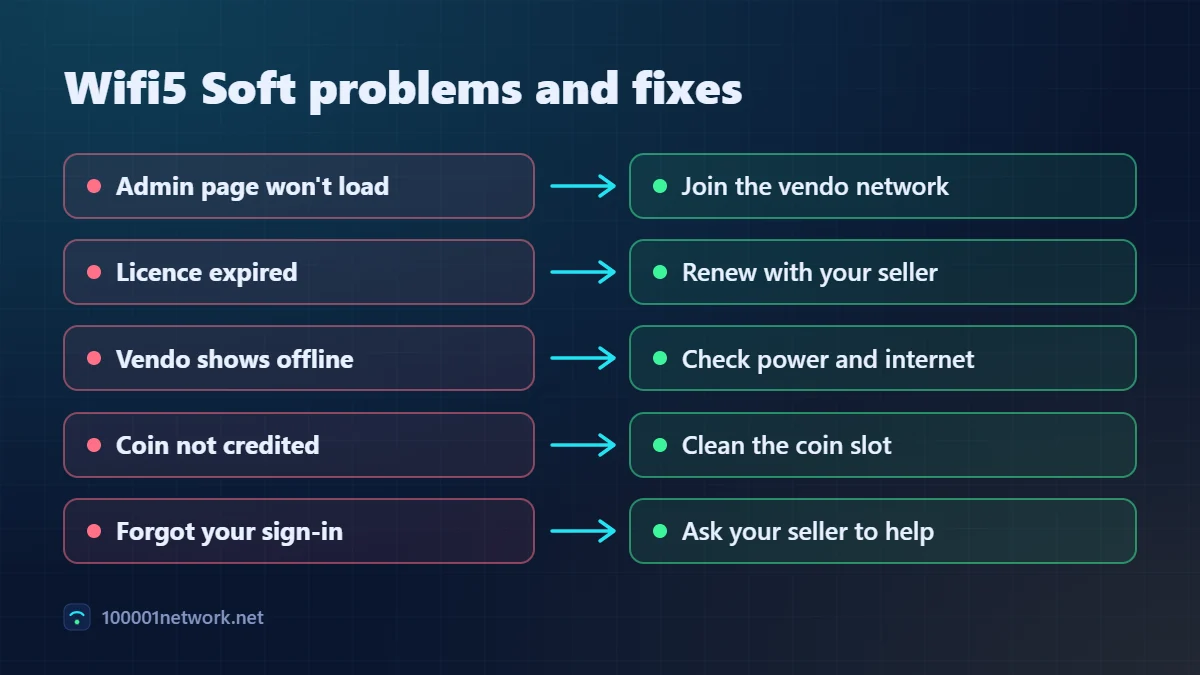
Most Wifi5 Soft problems come from being on the wrong network, a power or internet issue, or a changed setting. Check the simple things first.
| Symptom | Likely cause | Fix |
|---|---|---|
| Admin page not loading | Mobile data on, wrong Wi-Fi, typed in search bar | Join the vendo Wi-Fi, turn off data and VPN, use the address bar |
| Sign-in rejected | Wrong email, old password, typo | Check caps lock, try recovery, ask your installer |
| Licence expired notice | Licence period ended or not activated | Check expiry on the dashboard, renew through your seller |
| Vendo offline | No power, internet down, loose cable, frozen unit | Check power and modem lights, reseat cables, restart the vendo |
| Coin not credited | Coin jammed or rejected, countdown ended | Customer: tell the owner. Owner: clean the slot, check records |
| Client page won’t pop up | Mobile data, VPN or Private DNS | Turn them off and open the address by hand |
| Paused time missing | Different phone, random MAC, code expired | Use the same phone, turn off random MAC |
The vendo and your internet modem are separate boxes. If the dashboard loads but paying customers cannot browse, check the modem lights, restart it, and call your provider if the line is down. For coin jams, unplug the vendo before opening the slot. Customers needing more portal fixes can try our 10.0.0.1 login help page.
Wifi5 Soft vs LPB vs AdoPiSoft
Choosing software, or wondering why a friend’s vendo works differently? LPB and AdoPiSoft details below come from their official sites. Wifi5 Soft details are third-party reports, so treat them as unconfirmed.
| Feature | Wifi5 Soft | LPB | AdoPiSoft |
|---|---|---|---|
| Customer page | 10.0.0.1 | 10.0.0.1 | 10.0.0.1 |
| Owner page | 10.0.0.1/admin | 10.0.0.1/admin | 10.0.0.1/admin |
| Owner sign-in | Account and email (reported) | Fixed default, change it | Fixed default on older builds |
| Pause control | Pause limit per voucher (reported) | Maximum pause time | Limits number of pauses |
| Payments | Coins, vouchers (reported) | Coins, GCash, Maya, vouchers | Coins, vouchers |
| Hardware | Ask your seller | Raspberry Pi, Orange Pi, Newifi and more | Raspberry Pi, Orange Pi, Newifi, PC |
| Licence | Expiry on dashboard, price not public | Yearly Lite or Premium | Paid licences, see official site |
| Official website | None found | Yes | Yes |
LPB and AdoPiSoft publish features and prices, so they are easier to research. An account login avoids a well-known default password, but Wifi5 Soft support leans on your seller. Our LPB Piso WiFi guide looks closer at LPB menus, licences and pause settings.
Questions to Ask Before Buying a Wifi5 Soft Vendo
With little public information, your seller is your main support. Ask these before you pay and keep the answers in writing.
- Which software version is installed, and how do updates work?
- Who creates the admin account, and how is it handed over?
- How long is the licence, what does renewal cost, and what happens if it expires?
- How do I recover the account if I forget the password?
- Is there a safe reset method, and what does it erase?
- Who do I call if the coin slot or board fails?
If a seller cannot explain licence renewal or account recovery, think twice.
Mabilis na gabay (Taglish):
- Customer: kumonekta sa Wi-Fi ng vendo, buksan ang 10.0.0.1, i-tap ang Insert Coin, maghulog, tapos i-tap ang Connect.
- Para mag-pause: buksan ulit ang 10.0.0.1 sa parehong phone at i-tap ang Pause.
- Owner: buksan ang 10.0.0.1/admin at mag-sign in gamit ang email at password ng account mo.
- Nakalimutan ang password? Kausapin muna ang seller o installer bago mag-reset.
FAQs about Wifi5 Soft
What is the default password for Wifi5 Soft?
Third-party guides report there is no fixed Wifi5 Soft default password. Instead, the owner creates an account, often with an email address, during setup. If you did not set up the vendo yourself, ask the seller or installer for the account details, then change the password right away.
What is the Wifi5 Soft admin address?
Owners open 10.0.0.1/admin while connected to the vendo network. The page will not load over mobile data, because 10.0.0.1 is a private address that only exists inside the vendo’s own network. Customers use plain 10.0.0.1 instead.
Can I open the wifi5-soft client 10.0.0.1 page on mobile data?
No. The client page only works while your phone is connected to the vendo Wi-Fi. Turn off mobile data, join the vendo network and then open 10.0.0.1. If your phone keeps switching to data, turn on airplane mode, then switch Wi-Fi back on.
How long can I pause my Wifi5 Soft time?
It depends on the owner. On the versions we have seen documented, the pause limit is set for each voucher, and codes can also have a validity period. Ask the owner about their pause rules before you buy, and always resume on the same phone.
What happens when the Wifi5 Soft licence expires?
This is not publicly documented. The dashboard reportedly shows the licence status and expiry date, so you can renew before it lapses. If your licence has already expired, contact the seller before you reset or reinstall anything, so you do not lose your settings.
Is Wifi5 Soft better than LPB or AdoPiSoft?
No single system is best for everyone. LPB and AdoPiSoft publish their features and prices, which makes them easier to compare. Wifi5 Soft uses an account login instead of a shared default password, but there is less public information. Pick the system your installer supports well.
Who do I contact for Wifi5 Soft support?
Start with the seller or installer who set up your vendo. We could not find an official website or support page, and we are not affiliated with any vendo brand. Be careful with strangers online who offer to fix your vendo if you give them your login.
Final word
Wifi5 Soft is simple once you know the two addresses: 10.0.0.1 for customers and 10.0.0.1/admin for owners. Because public information is thin, keep your account details safe and lean on your seller for version-specific menus. For other vendo brands and address typos, start from our 1.0.0.0.1 login guide.